
Google Gemini, the popular AI chatbot, enables you with a plethora of features such as browsing the web, analyzing data, generating media, researching in-depth insights, and more. Gemini was announced in December 2023 and replaced the Bard chatbot in February 2024, which soon became one of the most sophisticated AI tools for the world to use.
To give you a perspective, Google Gemini recorded a total of 1.2 billion visits, just in the month of October, 2025, and the majority of the traffic in the year was recorded from the United States at 12.99%, followed by India at 8.82% and Brazil at 7.53%.
This explains the level of assistance, simplification, and productivity that Google Gemini brings to people’s lives in several ways. Beyond planning, researching, and organizing, Gemini stands out above other similar bots because of its seamless integration with other Google products.
For instance, whether you want to search through your cluttered Gmail Inbox or summarize the available files in Google Drive, you can do it all with just a single prompt. Now, Gemini might just seem like a tool that awakens on your phone when you say, “Hey Google”. However, there’s more to how you can use Gemini to the best of its potential.
In What Ways Can You Use Google Gemini?
As an AI chatbot by Google, Gemini is trained to understand & generate text, while also acting upon other information such as videos, code, audio, and images. In a real use case scenario, here are some of the ways you can use Google Gemini:
- Engage with users in a text-based or voice-based conversation on virtually any random, research-driven, or analytical topic.
- Generate text for almost any occasion, such as creating blog posts, emails, stories, and more.
- Brainstorm ideas on starting a new business, interview preparations, skills you must learn, and more.
- Generate videos and images while having the liberty to tweak them using specific requests through prompts.
- Search the internet for information on any current topic across the globe.
- Analyze given data or images and create graphs or charts based on the analytical inputs.
- Translate the natural language prompts or design prototypes into working code snippets.
- Facilitate interaction with a computer for performing basic or redundant actions on the user’s behalf.
How to Use Gemini AI for the Google Workspace?
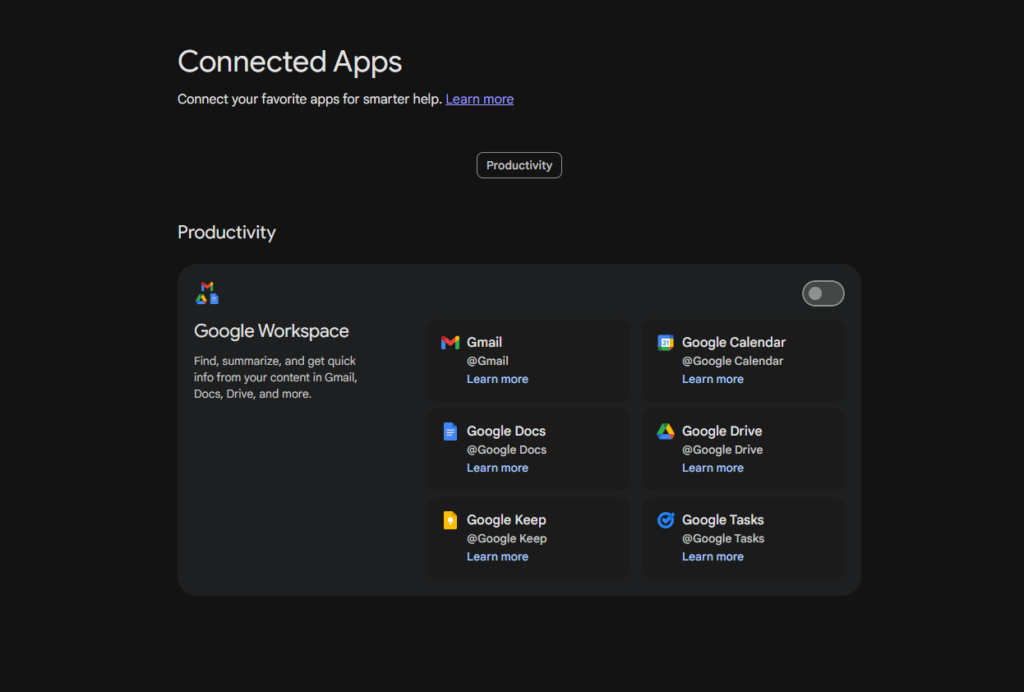
Keeping aside the general usage of Google Gemini by the global audience, you must also know how companies of all sizes use it. Gemini is well-integrated with Google products, enabling organizations to streamline their day-to-day tasks. Here are some of the ways to use Gemini for Google Workspace:
- Automatically create the structured meeting agendas based on the specified purpose and involved participants.
- Gemini can help your team design custom project management templates specific to your needs.
- Get instant suggestions on crucial brainstorming sessions in real-time, giving you creative ideas to discuss and work upon.
- Condenses your long email threads into concise and understandable summaries.
- Gemini can ensure that all of your organizational documents adhere to a uniform format and style automatically, reducing manual efforts.
- Convert text presentations into visual pitch decks for better engagement.
- Automate strenuous data entry in Google Spreadsheets, which will save you some of your productive time.
- Provide you with predictive texts for quick email responses.
- Generates illustrative charts and graphs automatically using the given data on Google Slides.
- Analyzes customer feedback towards your products, services, or marketing campaigns and provides you with actionable insights.
- Generate effective content suggestions for your unique marketing campaigns.
- Record a text version of the to-do list from the meetings.
- Give your collected data to Gemini, and you can automate a standard report generation, which you can later tweak and modify.
- Gemini can identify and also predict potential risks in your business projects, giving you an added perspective to make crucial decisions.
How to Access Google Gemini Across Different Platforms?
Here is a step-by-step breakdown of how you can use Google Gemini across different devices or platforms:
On the Web:
- Go to www.gemini.google.com, and log in using your existing Google Account, or sign up to create a new one for free.
- Once redirected to the Gemini homepage. A “Terms of Service” pop-up will appear, which you have to agree to. Click on “I Agree” to proceed further.
- You can now enter your text prompt, an audio, or an image in the given box to get started using Gemini.
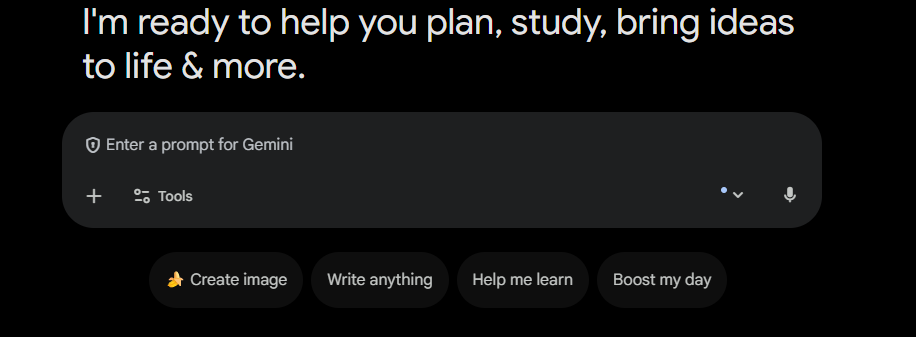
- By assessing your prompt or query, Gemini will give you a quick yet insightful response. Upon reading or viewing the same, you will have a few options:
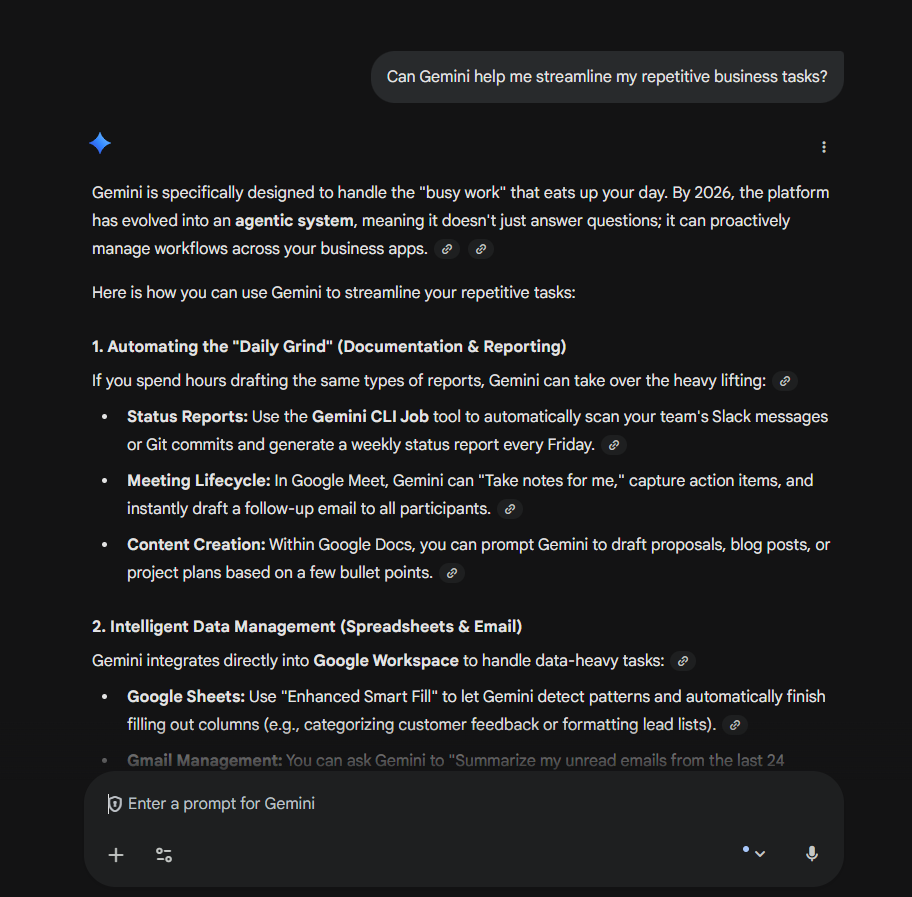
- You can edit your original prompt for an even more relatable answer.
- Write or say aloud a new prompt for a follow-up response.
- Like or Dislike the accuracy of Gemini’s response.
- Request Gemini for a new and improved response.
- Share or copy the generated response.
On the Gemini AI App:
- Earlier Google Gemini App was limited only to Android smartphone users. However, since November 2024, it has now made available for iOS devices too.
- You must download the app on your device, either from the Play Store or App Store. Open the app on your device and grant all the permissions required for Gemini to operate seamlessly.
- If you have an existing Google Account, follow the prompt and log in using it. If not, create one for free.
- You will now have the message box visible on your phone screen, using which you can now type your prompt or query for Gemini to respond to it.
Gemini Live on Mobile App:

- Open the Gemini App on your smartphone and tap on the “Gemini Live” icon. It is the star icon that will be floating right above those three vertical bars.
- You can now verbally say your prompt, and when you are done speaking, Gemini will go ahead and process it.
- If you want to pause Gemini while it talks back, you can just tap the ‘Hold’ button. And, when you want to resume, select ‘Continue’.
- When you are done with your conversation and are satisfied with the answers, tap on ‘End’.
Get Started with Google Gemini Today!
There are a lot more basic and advanced tasks that Gemini can help you streamline, starting from setting your alarm to helping you with time management throughout the day.
Whether you are a business willing to leverage the potential of Gemini in your Google Workspace Suite or someone who just wants to use AI for day-to-day activities, this article highlights almost all the capabilities of this futuristic chatbot.
So, get started with experiencing the future of connectivity and productivity by exploring Gemini, alongside its connected app functionalities on your smartphones.